How to Troubleshoot Common Issues with the OMICall System
Reading time: 8 minutes
While using the call center system, you may occasionally encounter unexpected issues. Below are some common errors and how to resolve them on OMICall.
Login failure
Incorrect login URL
Please visit the correct link to log in to the OMICall system: https://sso.omicrm.io.
Incorrect login credentials
If your login details are incorrect, it may be due to an incorrect password or email address. If you have forgotten your password, please visit the following link to retrieve it: https://sso.omicrm.io/password/retrieval?lng=vi.
Business account inactive
If your business’s service plan has expired, please contact customer support for assistance with reactivating your account. You can call the hotline at 0287 1010 898 for timely answers and support.

How to Troubleshoot Common Issues with the OMICall Virtual Call Center
Poor call quality
Common issues
- One-way audio.
- Call is not seamless; it is choppy or intermittent.
- Call duration continues to count even after the call has ended.
- High call latency (delay).
- Call drops unexpectedly.
Causes
VoIP systems operate via an Internet connection. Consequently, Internet bandwidth and connection speed play a decisive role in call signal quality. Some specific causes include:
- Insufficient bandwidth: As the number of connected devices increases, Internet usage demands rise significantly. Insufficient bandwidth causes the signal to be spread too thin, resulting in poor call quality.
- Unstable network connection: Wi-Fi connections can be less stable than wired (Ethernet) connections. An unstable connection degrades call quality.
- High CPU load: Performing multiple tasks simultaneously on the computer can reduce system performance, leading to degraded call quality or the inability to make calls.
How to fix it
- Use a wired (Ethernet) connection for your PC or laptop: A wired Ethernet connection provides a more stable signal than Wi-Fi, helping to improve call quality and reduce latency.
- Ensure optimal computer performance: Check that your computer is not overloaded by other applications. Close unnecessary programs to boost performance.
- Manage bandwidth: Avoid bandwidth-intensive activities—such as downloading files, streaming music or movies, or gaming—while on a VoIP call. This ensures sufficient bandwidth is reserved for the call, resulting in better quality.
Account unable to play audio recordings.

Unable to play audio recording
Causes
- Storage limit for the V1 plan: Once storage capacity is full, the system prevents the upload of new files—including call logs, customer information, and call recordings—making it impossible to access new recordings.
- Overwrite mechanism for the V2 plan: The system overwrites old recordings with new call recordings. Consequently, the previous calls associated with the overwritten files can no longer be played back.
Resolution
The quickest way to resolve this common error is to contact your assigned sales representative to purchase additional storage capacity. For further assistance, please contact Customer Support via the hotline: 0287 1010 898.
Unsuccessful outgoing/incoming calls on the OMICall web platform
“Unable to call this subscriber”
Calling customers who are currently unavailable:
- Busy
- Call rejected
- Subscriber unavailable
- Out of coverage area
- Ad blocking
This issue occurs only when calling specific customers (not all of them) and does not originate from the call center system itself. Please try calling a different number. You can check if a number has opted out of receiving promotional calls at: https://khongquangcao.ais.gov.vn/.
Number/Prefix Issue
If this issue occurs when calling all numbers, there may be a problem with the specific number or prefix. If the number is provided by a vendor other than VIHAT – OMICall, please contact that provider for assistance.
If the number is provided by VIHAT – OMICall, please contact the technical support team to have the issue investigated.
Vietnam’s leading AI-powered multi-channel virtual call center
Checking the party that ended the call
Go to Call Center > Call History > Call Details to check.
If the party that ended the call is listed as “Customer” or “Customer Refused,” the reason could be:
- The customer rejected the call.
- The customer is on the Do Not Call (DNC) list.
- The customer is currently on another call.
- The number indicates the subscriber is unavailable.
- The phone number does not exist.
- The phone number is out of coverage range.
If the person who turned off the machine is an “Employee,” the reason could be:
- The employee rejected or disconnected the call.
- The employee missed the customer’s call.
- The employee has not connected the headset and microphone and cannot make or receive calls.
If the entity that shut down the system is the “Call Center,” the cause could be:
- Termination signal from the carrier’s number.
- The staff member lacks an outbound calling number.
- Unstable Internet connection on the staff member’s end, causing the call to drop.
The call disconnects automatically upon dialing, without an error message.
Check
Ensure the microphone is working. You can test this by recording audio online or making a call via platforms like Zalo or Messenger.
Resolution
Ensure your browser has permission to access the microphone and necessary devices. If not, follow the instructions to grant access permissions to the browser.
“No available number”
Cause
- Business phone number inactive or outbound calls disabled: The number may be disabled or inactive for various reasons.
- Number permissions: The employee lacks the authorization to use the number for making calls.
- Expired phone number: Once the number expires, it is disabled on the business account.
Handle:
- Enabling outbound calling for a number: Instructions on how to re-enable outbound calling for a number that has been deactivated.
- Assigning number permissions: Instructions on how to grant staff members permission to use a specific number for making calls.
- Expired number: When a number expires, it is automatically deactivated on the business account. Please contact the relevant representative for assistance and to submit a support request if necessary.
IP Desk Phone
“Network Unavailable”, “No Service”
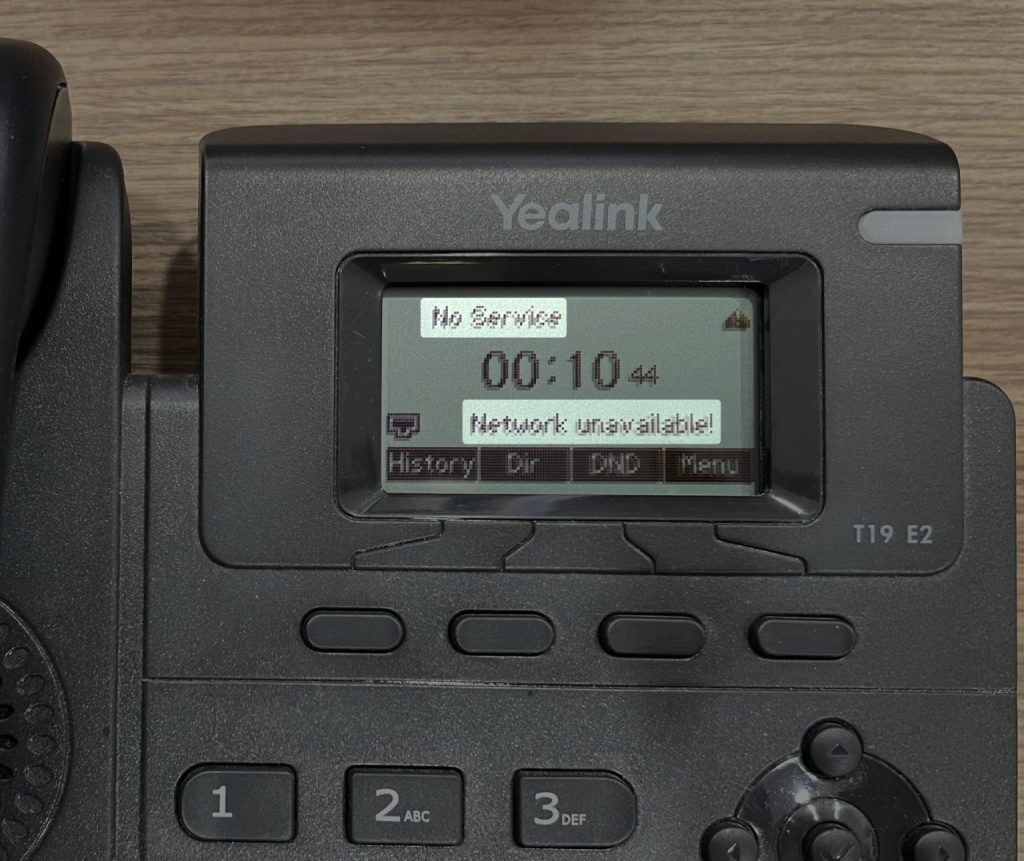
IP Desk Phone Error
Cause: The IP desk phone has lost its Internet connection.
Resolution:
- On the IP phone, press Menu > Status > IPv4.
- If there is no Internet connection, the IPv4 address will display as 0.0.0.0.
- Ensure the network cable has an active Internet connection, then try reconnecting it, making sure to plug it into the correct port—either the INTERNET port or the port marked with the LAN icon.
IPv4 address received, but “No Service” is displayed
Cause: The IP phone has lost its configuration.
Solution: Reconfigure the IP phone.
No ringing for incoming calls; only a missed call notification appears on the screen
Cause: The IP phone is in DND (Do Not Disturb) mode – (item 1).
Solution: Press the DND button to toggle DND mode on or off – (item 2).
“Ghost call” scenario
Occasionally, users may receive unsolicited external calls that do not originate from the registered SIP server. This indicates that a hacker has scanned the VoIP system’s ports and is using IDs to place nuisance calls. These are known as “ghost calls,” which cause confusion and annoyance for users.
For Grandstream phones:

Troubleshooting common issues with Grandstream phones
- Press the NextScr button to display the phone’s IP address.
- Open a web browser and enter the IP address shown on the phone to access the management interface.
- Enter the username and password to log in (default is admin/admin).
- Go to Accounts -> SIP Settings -> Security Settings.
- For the “Check SIP User ID for Incoming INVITE” option, select Yes.
- For the “Accept Incoming SIP from Proxy Only” option, select Yes.
- Click Save and Apply to save the changes.
For Yealink phones:
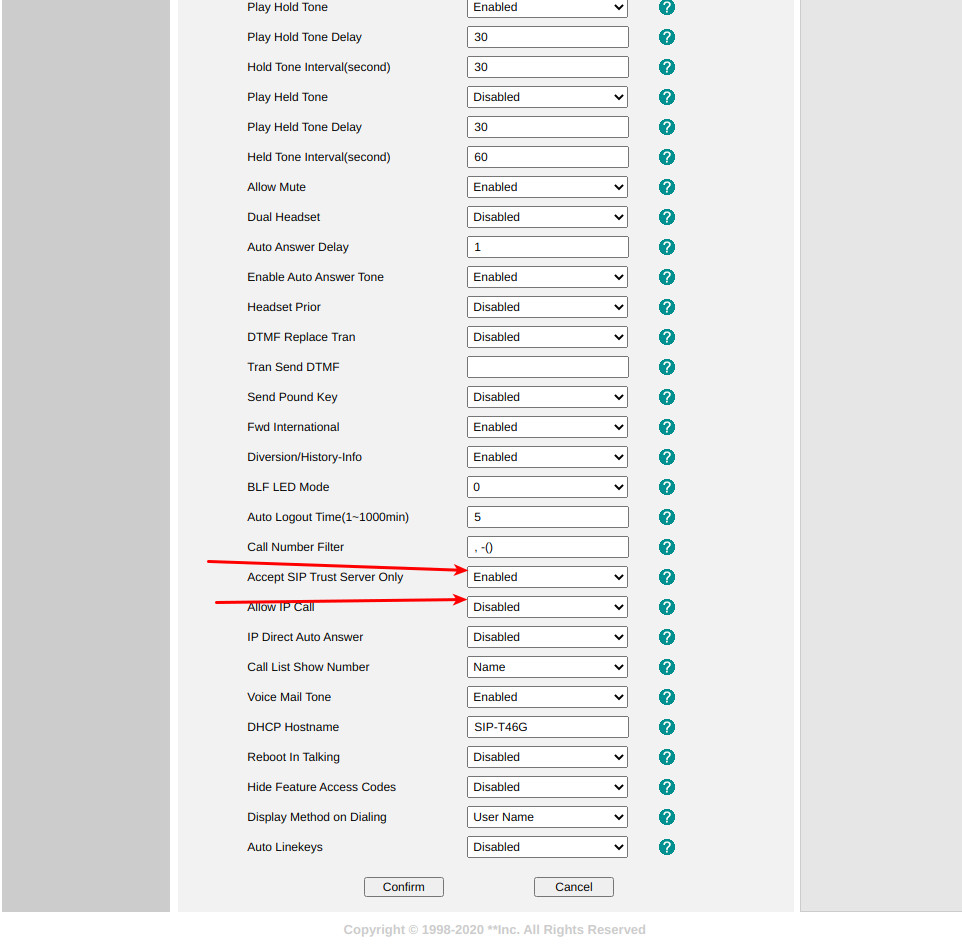
Troubleshooting phantom calls on Yealink devices
- Press the OK button on the phone and note down the IPv4 address.
- Open a web browser and enter the IPv4 address displayed on the phone to access the management interface.
- Enter the username and password to log in (default is admin/admin).
- Go to Features -> General Information.
- For the “Allow IP Call” option, select Disabled.
- For the “Accept SIP Trust Server Only” option, select Enabled.
- Click Confirm to save the changes.
Conclusion
We hope that the solutions provided above for common issues will enable businesses and customers to resolve any necessary problems, ensuring a positive experience and maximum satisfaction with OMICall.
For further information, please contact:
VIHAT TECHNOLOGY Co., Ltd
Headquarters: ViHAT Building – 06 Street No. 16 (Him Lam Residential Area) – Hiep Binh Chanh Ward – Thu Duc District – Ho Chi Minh City
Hanoi Branch: Floor 15, LADECO Building, 266 Doi Can, Ba Dinh, Hanoi
Cambodia Branch: Thida Rath #154 St. 33MC, Sangkat Steung Meanchey, Khan Mean Chey, Phnom Penh

-
 What is TikTok advertising? Advertising policies and how it works.
-
 Exploring Conceptual Selling – Understanding Modern Sales Trends Correctly
-
 What is a KOC? Distinguishing between KOLs and KOCs.
-
 What Are Customer Insights? Revealing How to Effectively Uncover Them
-
 What is Digital Marketing? 10 Effective Forms of Digital Marketing
-
 What is Online Marketing? Types of Online Marketing