What is Zalo Personal Marketing? How to use ZPM effectively
Reading time: 23 minutes
In many marketing and sales campaigns, businesses not only need “customer data,” but also a fast, personalized, and flexible approach to deliver the message to the right recipients. However, when implementing mass messaging via personal Zalo accounts, operations teams often encounter many problems: manual sending is time-consuming, it’s difficult to distribute the load across multiple accounts, it’s hard to monitor sending status, the failure rate is high, and there’s no clear post-campaign reporting.
This is why Zalo Personal Marketing , or ZPM , has become a crucial feature in OMICall. ZPM helps businesses create marketing sessions from multiple personal Zalo accounts, leveraging various customer data sources such as Zalo groups, friend lists, CRM, or Excel files. It also supports account allocation, spacing out posts, resending failed campaigns, and real-time campaign status tracking.
In other words, ZPM is not just a “mass messaging” tool. It’s a mechanism for running controlled personal Zalo campaigns, helping businesses increase customer reach, reduce manual operations, and optimize outbound marketing effectiveness.
What is Zalo Personal Marketing?
Zalo Personal Marketing is a solution for sending mass marketing messages through individual Zalo accounts connected to the OMICall system. This feature allows businesses to create sending sessions, add customers from multiple data sources, configure sending accounts, set sending speeds, resend if campaigns fail, and track campaign results on a centralized management interface.
What sets ZPM apart is that the system doesn’t just send messages from a single account. Businesses can configure multiple individual Zalo accounts to participate in a campaign, thereby distributing the sending load, minimizing disruptions, and increasing customer reach in outbound campaigns.
In practice, ZPM is suitable for activities such as sending promotional notifications, reaching new leads, re-engaging existing customers, sending messages to Zalo group members, leveraging friend lists, or running marketing campaigns using data from CRM and Excel files.
Quick summary
| Content | Brief explanation |
| What is ZPM? | OMICall features a function for sending mass marketing messages across multiple personal Zalo accounts. |
| Who is it suitable for? | Businesses need to reach customers through personal Zalo accounts, especially sales, marketing, telesales, and lead generation teams. |
| Customer support source | Manual methods, Excel files, CRM, Zalo conversations, Zalo groups, friend lists. |
| Shipping method | Send via phone number or Zalo User ID.. |
| Main strengths | Load balancing across multiple accounts, resend upon failure, real-time monitoring, report generation, and optimization of successful delivery rates. |
| Important note | Sending messages via Zalo User ID requires using the exact Zalo account that has previously interacted with the customer; you cannot use the same User ID across different accounts. |
Why should businesses use Zalo Personal Marketing?
For many businesses, Zalo is one of the familiar communication channels with customers in Vietnam. However, not every campaign is suitable for deployment through Zalo OA, ZNS, or automated customer care scenarios. There are situations where businesses need a more flexible, more personal approach and can leverage the personal Zalo accounts of their sales or customer service teams.
Before the advent of centralized management tools, sending personal Zalo messages relied heavily on manual processes. Staff had to manually filter lists, find customers, send each message, and track who had successfully sent messages and who hadn’t. This method was not only time-consuming but also difficult to scale as the number of customers increased.
ZPM addresses this issue by integrating the process of sending personal Zalo messages into a clearly configurable campaign session. Businesses can define customer lists, message content, execution accounts, sending speed, sending time, number of retries, and post-campaign reports. As a result, customer outreach via personal Zalo accounts becomes more organized, easier to control, and easier to measure.
For sales and marketing teams, ZPM is particularly useful in situations requiring quick access to a large customer base, such as announcing promotions, inviting webinars, re-engaging with existing leads, reminding clients of consultation appointments, introducing new products, or reactivating previously engaged customer groups.
Which businesses are suitable for ZPM?
ZPM is suitable for businesses that need to proactively send marketing messages to many customers via individual Zalo accounts. This feature is especially useful for teams that already have a customer database from Zalo groups, friend lists, CRM, Excel, or chat history.
Some business groups that should consider using ZPM include:
| Business group | Common needs | How ZPM provides support |
| Real estate | Send project information, invite to events, and follow up with leads. | Send mass shipments across multiple sales accounts, filtering by pre-existing data files. |
| Education | We invite students to participate in consultations, remind them of course start dates, and send course offers. | Personalize content by name, customer group, or data source. |
| Beauty salon, spa, clinic | Send promotional offers, reminders, and reactivate existing customers. | Create a session to send files from Excel or CRM. |
| Retail, Food & Beverage, Services | Send promotional codes, membership program information, and campaign notifications. | Load balancing across multiple accounts, monitor delivery status. |
| B2B/SaaS | Invite participants to webinars, send materials, and nurture leads from the event. | Send via CRM files, Zalo groups, or old interaction lists. |
However, ZPM is best suited for large-scale customer engagement and activation . For scenarios requiring intensive care, complex conversation handling, dynamic conditional responses, or multi-step business process integration, businesses should combine it with automation solutions like OMIFlow for a more complete experience.
How does ZPM work?
ZPM operates on a session-based model. Instead of sending individual messages, users create a campaign session with complete information: session name, sending time, executing Zalo account, message content, customer list, attribution configuration, and resending mechanism.
Step 1: Create a sending session
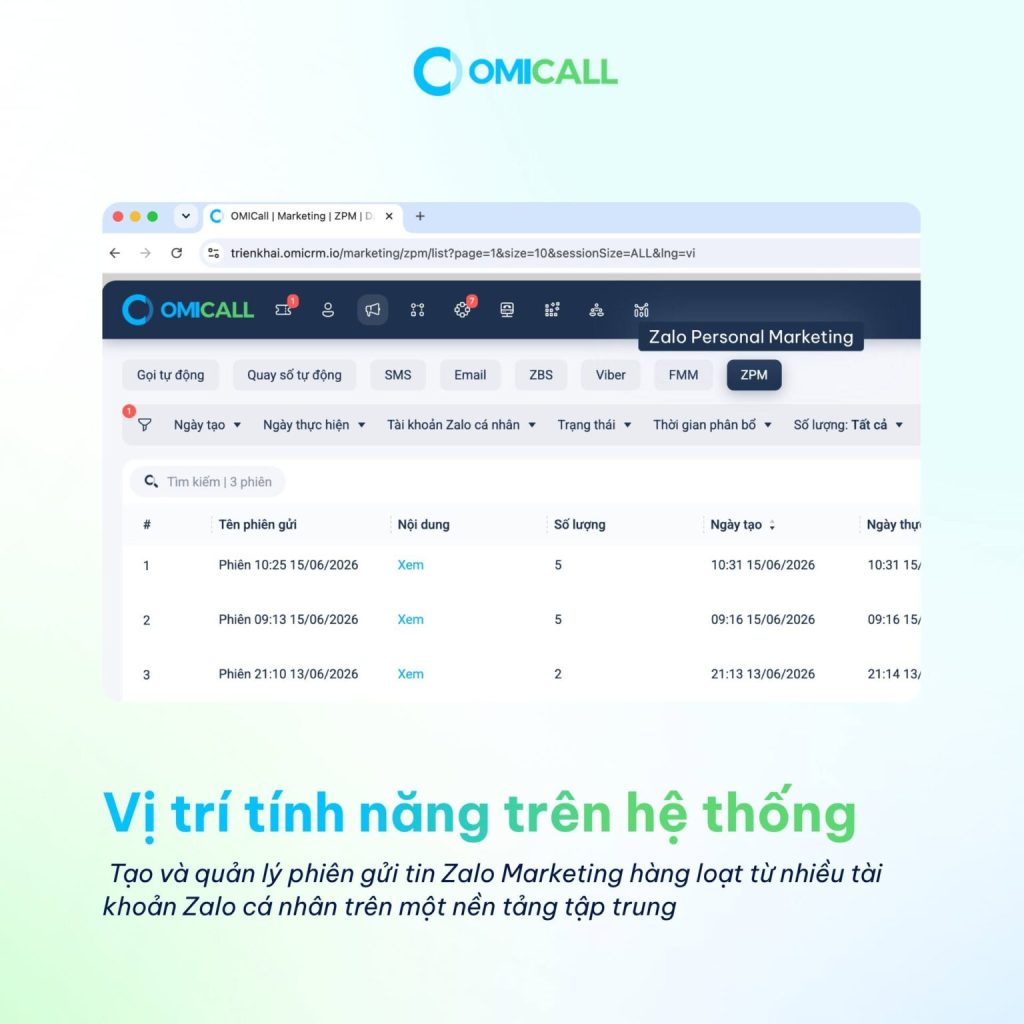
Users access the Marketing screen, select the ZPM tab, and click “Create Session.” Here, the system allows them to declare basic information such as session name, sending time, the Zalo account used for sending, and message components. Message content can include text and images, with a maximum of 5 components.
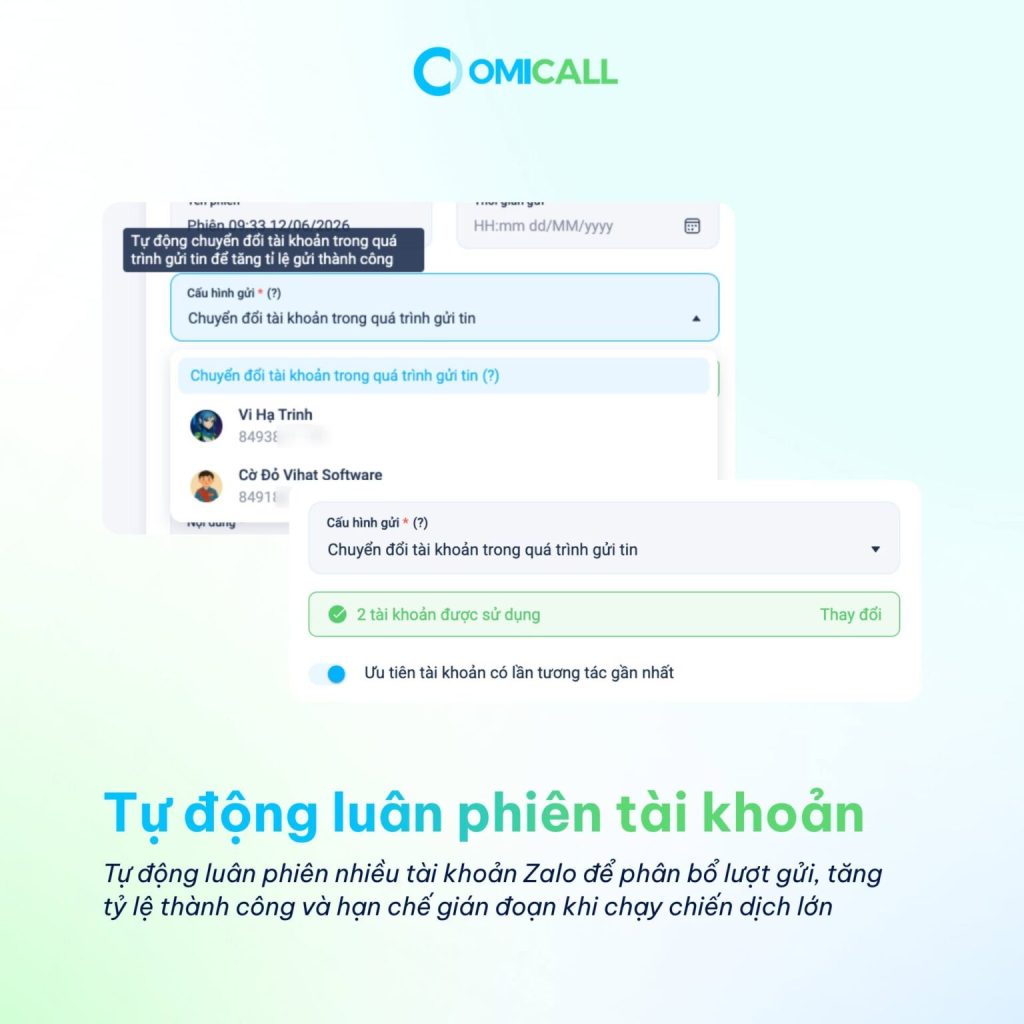
If the sending session is configured using two or more personal Zalo accounts, the system will display additional advanced options such as switching accounts during message sending and prioritizing the account with the most recent interaction. This is a crucial feature that prevents the campaign from being dependent on a single account.
Step 2: Add customers to the session
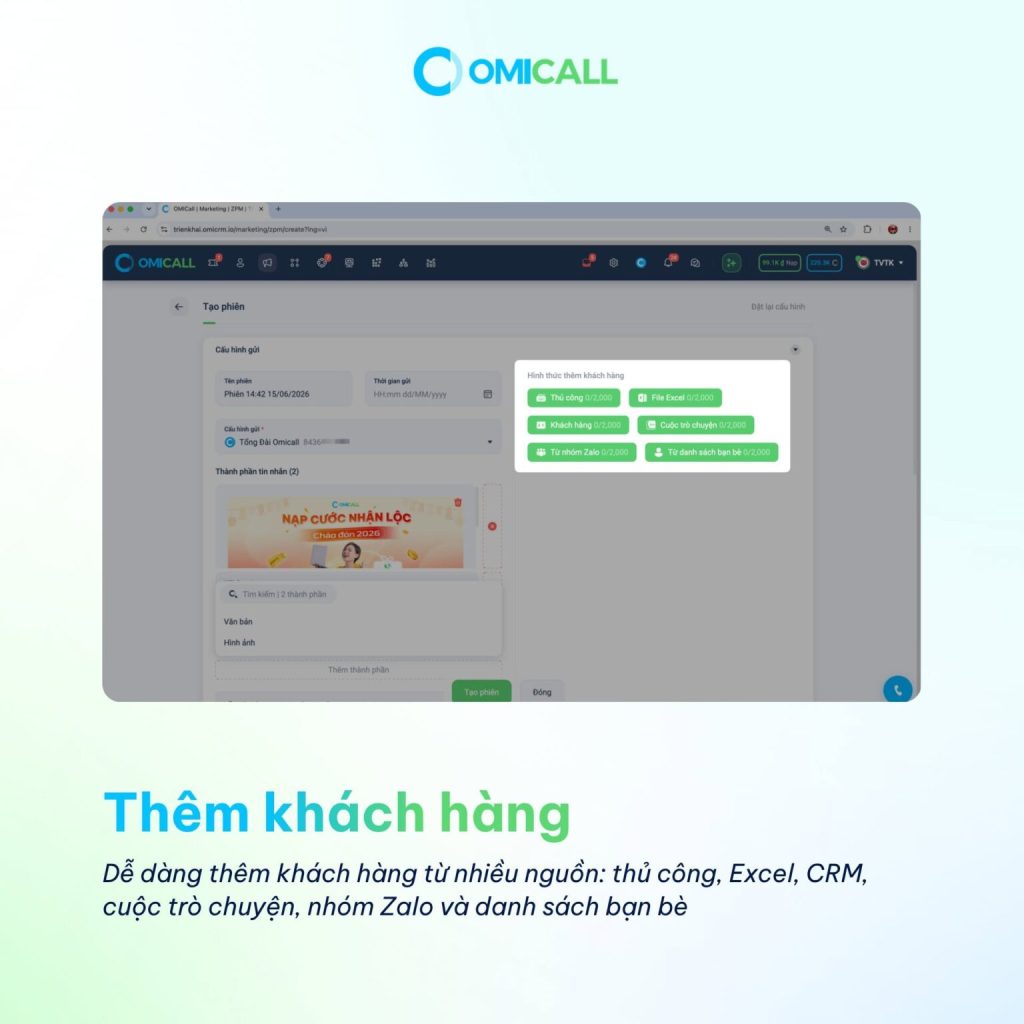
After creating the session frame, users add customers to the campaign from available data sources. OMICall ZPM supports multiple ways to add customers, such as manual import, uploading Excel files, filtering from CRM, retrieving from chats, Zalo groups, or friend lists.
Step 3: Configure allocation and resending
Users can set the allocation rate, the allowed sending timeframe, the number of retries after failure, and the retry mechanism for each sending method. This step helps to make the campaign run more securely, avoid sending too many messages at once, and reduce the risk of disruption.
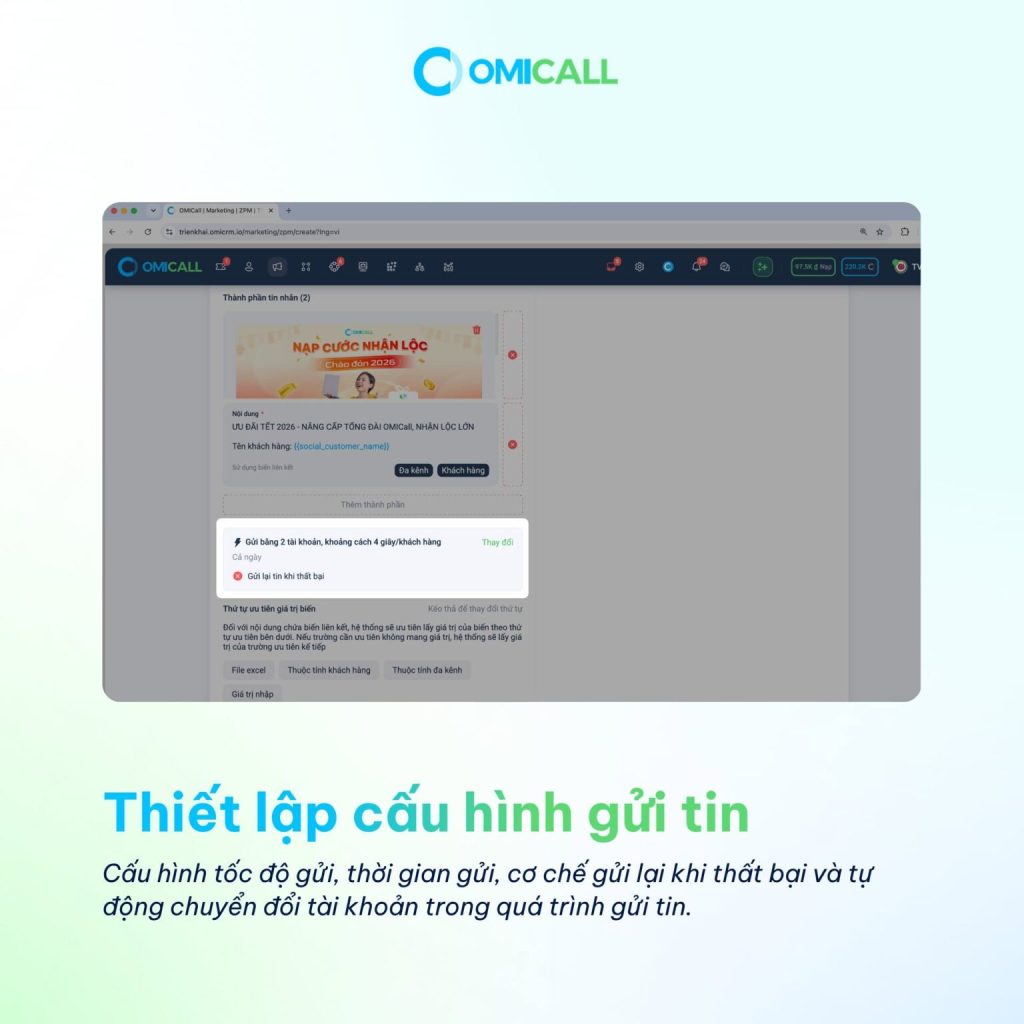
Step 4: Check the data before sending.
Before confirming session creation, users should review the customer list, sending method, message content, and personalization variable list. This review helps minimize errors such as missing customer names, incorrect phone numbers, wrong User IDs, or inappropriate message content.
Step 5: Monitor in real time and generate reports.
After the sending session is initiated, the system switches to the detailed reporting interface. Here, users can monitor the session status, number of customers, number of sends, number of successful, failed, pending messages, number of retries, and running configuration information. After the campaign, users can filter by creation date to export detailed reports.
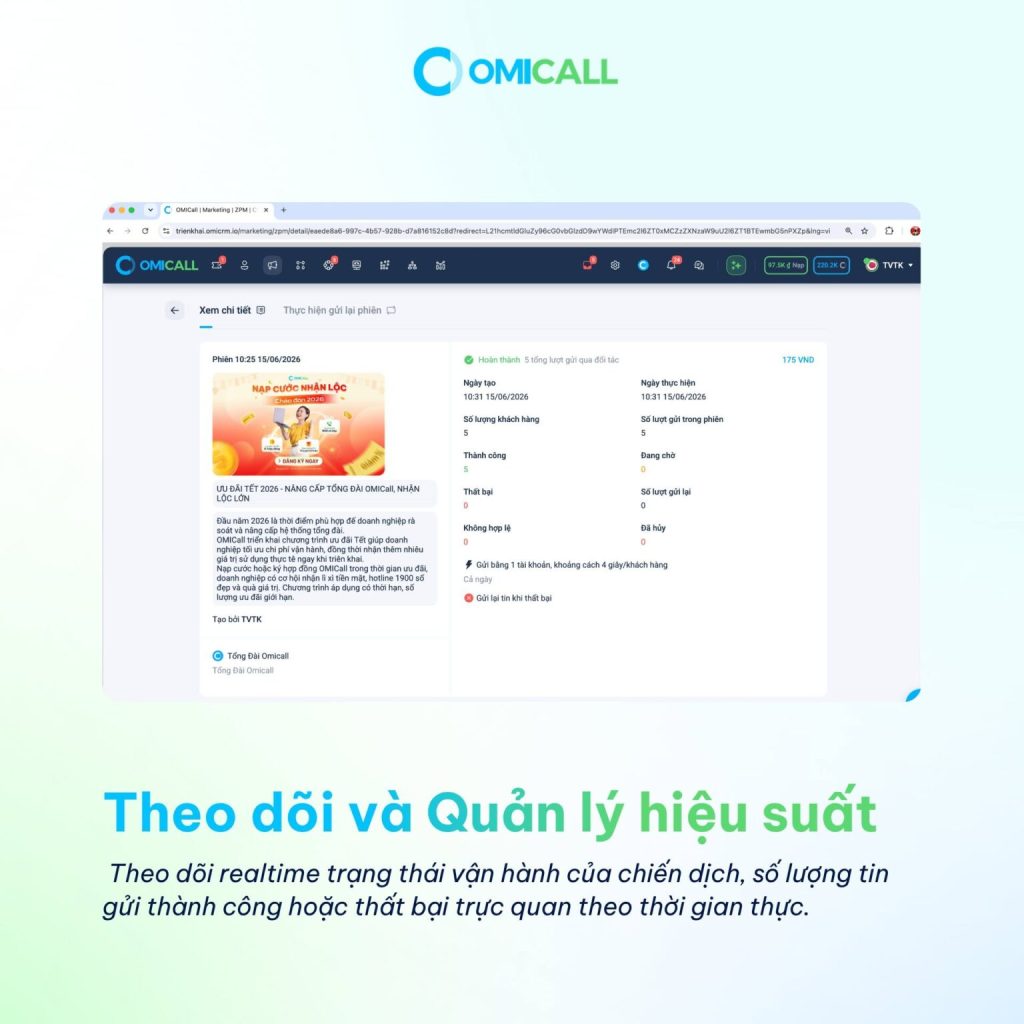
Customer data sources can be added to the ZPM session.
One of ZPM’s strengths is its ability to leverage multiple customer data sources. This allows businesses to avoid being limited to a single pre-existing file, and instead flexibly choose the source best suited to each campaign.
1. Add customers manually
This method is suitable when users only need to send a test message to a few customers or want to test content before launching a large campaign. Users enter phone numbers and personalized values such as customer names, promotional codes, or other relevant information.
2. Add customers from an Excel file.
This Excel file is suitable for businesses that already have a customer list to send emails to. Users can configure data columns corresponding to phone numbers, Zalo User IDs, customer names, or other personalized fields.
It’s important to note that the Excel file needs to include at least a phone number or Zalo User ID for the system to identify the recipient. If using a Zalo User ID, that User ID must already exist in the system.
3. Add customers from CRM
For businesses already managing customers on a CRM system, ZPM allows filtering customers by attributes such as tags, groups, industries, or other classification criteria. This is suitable when businesses want to send messages to specific segments, for example: customers who have demoed the product, customers interested in product A, customers in the retail industry, or customers in a particular branch.
4. Add customers from the conversation.
ZPM can retrieve customers from previously generated Zalo conversations on personal Zalo accounts connected to the system. This allows businesses to reuse customer files they have previously messaged, eliminating the need for manual data re-entry.
5. Add customers from Zalo groups.
For personal Zalo accounts that have joined the group, the system can help retrieve the list of group members to add to the session. This is a useful data source for community campaigns, events, webinars, real estate, education, or industry-specific consulting groups.
6. Add customers from your friends list.
Businesses can also synchronize friend lists from connected personal Zalo accounts. This method is suitable when sales teams or consultants already have a customer network on their personal accounts and want to launch a re-engagement campaign or reactivate this group.
How is sending via phone number different from sending via Zalo User ID?
This is a crucial part of operating ZPM, because misunderstanding the mechanism can lead to incorrect configuration of the sending account or the use of the wrong User ID.
Send to phone number
When sending messages via phone number, the system can use any personal Zalo account in the session to search for customers and send messages. This mechanism is suitable when businesses want to reach new customers who have no chat history or only have phone number data.
The advantage of sending data via phone number is greater flexibility in load balancing across multiple accounts. If one account experiences an error or is limited, the system can switch to another configured account to continue processing.
However, this method also carries the risk of failure if customers disable phone number searches, block messages from strangers, or if there is no proper connection between the two accounts.
Send via Zalo User ID
A Zalo User ID is an identifier linked to the relationship between a specific Zalo account and a specific customer . This means that if the same customer in real life has chatted with two different Zalo accounts, the system may record two different User IDs.
Therefore, when sending messages using Zalo User ID, businesses are required to use the exact Zalo account that has previously interacted with the customer. It’s not possible to use a User ID generated from chat history with account A to send messages using account B.
For example: If customer Anh Khoa previously chatted with an OMICall account and the system generated UserID_1 for that relationship, then only the OMICall account can use UserID_1 to send messages. If the eSMS account also previously chatted with Anh Khoa, the system might generate a different User ID, for example, UserID_2. In that case, the eSMS must use its own UserID_2, not OMICall’s UserID_1.
Quick comparison table
| Criteria | Send to phone number | Send via Zalo User ID |
| Required data | Customer phone number | The User ID already exists on the system. |
| Ability to change sending account | More flexible, you can use a different account during the session. | Restricted, must use the exact account that interacted. |
| Suitable for | New customer file, file from Excel/CRM | The file already contains a chat history. |
| Risk of failure | The customer has turned off phone number search, blocked strangers, and is not a friend. | Incorrect UID for the account, UID restricted by Zalo. |
| Points to note | It’s advisable to have multiple accounts to distribute the load. | Do not use UIDs across accounts. |
Account allocation and resending mechanism in case of failure.
One of ZPM’s greatest strengths lies in its ability to distribute the load across multiple individual Zalo accounts within a single sending session. When a campaign has a large number of customers, load balancing prevents each account from processing too many messages in a short period, thereby minimizing disruptions and optimizing overall speed.
Automatic allocation across multiple accounts
When you have two or more personal Zalo accounts, the system can automatically alternate between the configured accounts to send messages. This mechanism helps distribute sending requests among multiple accounts, increasing the chances of successful delivery and reducing the risk of a campaign being stopped due to an account error.
Additionally, the system offers an option to prioritize accounts with the most recent interactions. When this option is enabled, ZPM prioritizes using Zalo accounts that have had the most recent interactions with the customer. This makes the conversation more natural, as customers receive messages from accounts they have previously communicated with instead of unfamiliar accounts.
Resend automatically upon failure.
ZPM allows you to set up a resending mechanism when a message fails. Users can enter the number of retries, the interval between retries, and choose the processing mechanism for each data type: sending using Zalo User ID or sending using Phone Number.
For customers who only have a UID or only a phone number, the system can only resend using that specific data type. If the customer has both a UID and a phone number, the system can apply an intelligent switching mechanism: prioritizing sending via UID first; if that fails and a retry is configured, it may switch to sending via phone number through another personal Zalo account.
Two common forms of retry
| Retry form | How it works | When should it be used? |
| Resend with the old configuration | The system will retry using the same account and method that was used for the initial submission. | When the error may be temporary, for example due to network issues or processing conditions. |
| Switch to another account | The system switches to a different Zalo account in the configuration. | When the original account encounters limits or needs to increase the success rate of submissions. |
With sending messages via phone number, transferring to another account is relatively more flexible. With sending messages via Zalo User ID, if a business wants to transfer to another account, they need a backup of the phone number data, because the User ID cannot be used across accounts.
Benefits of Zalo Personal Marketing for Businesses
1. Increase the speed of customer reach.
Instead of having each employee manually send messages, ZPM allows businesses to create bulk messaging sessions and automatically distribute data to individual Zalo accounts. This significantly saves sales and marketing teams time in campaigns that need to reach a large number of customers.
2. Leverage multiple available data sources.
Businesses can leverage data from Excel files, CRM, Zalo groups, friend lists, or chat history. This allows ZPM to not only serve new customers but also reactivate those who have previously interacted with the company.
3. Optimize the successful delivery rate.
Thanks to its load balancing, account switching, and retry mechanisms, ZPM helps minimize campaign disruptions when an account fails. For files containing both UIDs and phone numbers, the system can flexibly redirect the sending method to improve connectivity.
4. Personalize content based on customer data.
ZPM supports inserting personalized variables such as customer names or information from Excel/CRM files. The priority order of variable values is processed logically: Excel file first, customer attributes from CRM, and finally user-entered values. This mechanism helps to make the content sent more relevant to each customer.
5. Monitor the campaign in real time.
After a submission session runs, users can monitor the status in real time: total number of customers, number of submissions, successful, failed, pending, number of resubmissions, invalid, and canceled. This helps the operations team detect anomalies early, for example, an account with a high failure rate or many customers experiencing formatting errors.
6. Generate reports for measurement purposes.
ZPM supports managing session history and downloading detailed post-campaign reports. This provides a basis for businesses to evaluate the effectiveness of each customer segment, each sending account, each content, and each marketing campaign.
The process of creating a ZPM session on OMICall.
Phase 1: Defining campaign objectives
Before creating a session, businesses need to clearly define the purpose of the campaign. For example: sending promotional offers, inviting customers to webinars, re-engaging with existing leads, introducing new products, or reminding them of consultation appointments.
At this stage, four key elements need to be clarified: the target customer group, the main message, the sending time, and the metrics to track after the campaign.
Phase 2: Preparing customer data
Businesses need to choose the right data source. If the file comes from CRM, it should be filtered by tags, groups, industries, or customer care status. If the file comes from Excel, the columns for phone numbers, Zalo User IDs, customer names, and personalization variables need to be standardized. If the data is taken from a Zalo group or friend list, it is necessary to verify that the individual Zalo account is connected and has permission to access that data source.
Phase 3: Drafting the message content
The content should be concise, clear in purpose, and provide a reason for customers to respond. If using personalization variables, check the replacement data to avoid missing names or displaying incorrect variable codes in the message.
A simple message structure might include: a personalized greeting, reason for contact, core value proposition, call to action, and supporting information.
Phase 4: Configure sending account and sending speed
Users select their personal Zalo account to participate in sending messages, set the distribution speed, allowed sending time, and account switching mechanism. If there are multiple accounts, it is recommended to enable account switching and prioritize the account with the most recent interaction.
Phase 5: Setting up the retry
Users enable retry on failed attempts, enter the number of retries, the interval between retries, and select the retry mechanism for each data type. For important campaigns, it’s advisable to prepare both UIDs and phone numbers to increase the flexibility of retry attempts.
Phase 6: Session creation verification and confirmation
Before launching, you need to review the customer list, sending method, content, personalization variables, costs, and expected completion time. After confirmation, the system will add the campaign to the queue and send it according to the established configuration.
Phase 7: Monitoring, troubleshooting, and optimization
During the run, the operations team should monitor real-time success, failure, pending, and retry statuses. If the failure rate is unusually high, the sending account, customer data, error messages, and Zalo connection conditions should be checked.
Important notes when running a ZPM campaign.
1. Do not use the same Zalo User ID across accounts.
This is the most common mistake. User ID is not a universal identifier for all sending accounts. User IDs are generated based on the relationship between a specific Zalo account and a specific customer. Therefore, when sending via UID, the system must use the exact account that has previously interacted with the customer.
2. You should have a backup phone number if you want to transfer accounts when sending via UID.
If sending via User ID fails but the business wants to switch to a different account, the system needs the phone number to send the message to the new account. If only the UID is available, the ability to switch accounts will be limited.
3. Normalize data before uploading.
The Excel file must include at least a phone number or Zalo User ID. If the data is incorrectly formatted, missing important columns, or duplicates are not handled properly, the campaign may encounter errors or be sent to the wrong audience.
4. Check the personalization variable before running.
If the message contains variables such as customer name, promotional code, or personal information, please check the “Variable List” column beforehand to ensure the content sent is not blank or contains incorrect data.
5. Set a safe sending speed.
Avoid sending messages too quickly or overloading a single account with too many messages in a short period. ZPM has queuing and load balancing mechanisms, but operators still need to set a reasonable speed to protect campaign quality.
6. Always select the creation date when you want to export a report.
The detailed report download function is only available when the user selects a specific time period in the Creation Date filter. If the system prompts that a creation date needs to be selected, the user must revert to selecting a date range before exporting the data.
7. Understand the correct reasons for submission failures.
Messages can fail for many reasons: the customer blocks messages from strangers, phone number search is disabled, the two accounts are not friends, the sending account encounters limitations, or Zalo’s security mechanism blocks certain UIDs. Therefore, you shouldn’t just look at the number of failures but carefully read the error message to address the root cause.
Comparing ZPM with Zalo OA/ZBS and OMIFlow
| Criteria | ZPM | Zalo OA/ZNS | OMIFlow |
| Main purpose | GSend marketing messages via personal Zalo account. | Send notifications/feedback through official channels. | Automating care and operational processes. |
| Deposit account | Personal Zalo account has been connected. | Zalo OA/Business | Multiple channels and multiple processing conditions |
| Suitable for | Outbound marketing, lead generation, and lead nurturing. | Official transaction notifications and customer service. | Multi-step, multi-condition scenario, system integration |
| Strengths | Flexible, leveraging personal accounts and multiple data sources. | Authentic and appropriate service notification | Logical flexibility, advanced automation. |
| Limit | Subject to the conditions of the individual Zalo account and customer data. | Please adhere to the submission form/file/conditions as per the policy. | A clear scenario needs to be designed before implementation. |
| When should it be used? | We need to reach more customers quickly through personal Zalo accounts. | Formal notification and post-transaction support are needed. | We need to automate the process of nurturing and handling leads, and branching data. |
If a business needs to reach a large customer base through individual Zalo accounts, ZPM is a suitable option. If the goal is to send official notifications, order confirmations, OTPs, appointment reminders, or follow-up service procedures, Zalo OA/ZNS would be more appropriate. If a business needs a multi-step scenario, branching based on behavior, or integration with other systems, combining it with OMIFlow is recommended to optimize the entire customer journey.
Common mistakes when implementing Zalo Personal Marketing
Mistake 1: Thinking that a User ID can be used for all accounts.
Many people mistakenly believe that a customer only has one unique Zalo User ID across the entire system. In reality, the User ID is linked to each individual Zalo account and the customer’s account. Using the wrong User ID for the wrong account will prevent messages from being sent correctly.
The solution is to always check the source of the User ID and ensure that the sending account is one that has previously interacted with that customer.
Mistake 2: Preparing only one type of data
If a business only has a UID or only a phone number, the retry capability will be limited to that specific data type. For important campaigns, it’s advisable to prepare both UIDs and phone numbers so the system can adapt more flexibly in case of failed deliveries.
Mistake 3: Not checking for duplicate data
ZPM handles duplicate entries based on Zalo User IDs. However, the same person in real life can have multiple different UIDs if they have interacted with many personal Zalo accounts. Therefore, businesses need to understand this logic to avoid confusing “duplicate person” with “duplicate UID”.
Mistake 4: Not checking personalization variables
A message that includes the customer’s name, offer code, or personal information will feel more professional. However, if the variable data is blank or incorrect, the customer experience will suffer. Before running a campaign, it’s a good idea to preview the content and check the variable list.
Mistake 5: Not monitoring in real-time while running.
Some businesses simply create sessions and wait for the final results. This approach slows down the operations team’s detection of account errors, data errors, or unusual failure rates. With ZPM, real-time monitoring is recommended to allow for timely adjustments when needed.
Mistake 6: Using ZPM for scenarios requiring intensive care.
ZPM is suitable for mass marketing and outreach. If a business needs multi-step personalized consulting, complaint handling, after-sales service, or behavioral-based conversation branching, it should be combined with OMIFlow instead of using ZPM alone.
Suggested scenarios for applying ZPM in practice.
1. Campaign to invite customers to participate in webinars
Businesses can filter leads from their CRM by tags like “interested,” “subscribed to a document,” or “previously consulted,” then create a ZPM session to invite them to a webinar. Content can be personalized based on the customer’s name and their areas of interest.
2. Campaign to re-engage with existing leads
For customers who have previously chatted on Zalo but haven’t converted, businesses can add them from those conversations or CRM, then send reminders about new offers, policies, or consultation invitations.
3. Campaign to exploit Zalo groups
For community groups, customer groups, student groups, or project consulting groups, businesses can use the group member list to create a target audience. This method is suitable for campaigns that need to expand their potential customer base from an existing community.
4. Campaign to send offers via Excel file
Using data from events, registration forms, landing pages, or offline customer lists, businesses can upload Excel files to ZPM, map data columns, and send personalized messages to each customer.
Frequently Asked Questions about Zalo Personal Marketing
1. What is Zalo Personal Marketing?
Zalo Personal Marketing is a feature that allows you to send mass marketing messages through multiple personal Zalo accounts connected to OMICall. This feature helps businesses create sending sessions, add customers, configure accounts, resend if the campaign fails, and track campaign results.
2. Which businesses are suitable for ZPM?
ZPM is suitable for businesses that need to proactively reach customers through personal Zalo accounts, especially sales, marketing, telesales, education, real estate, spa, retail, F&B, and B2B/SaaS teams.
3. What types of data can ZPM send?
ZPM can send messages via phone number or Zalo User ID. For phone numbers, the system can use the Zalo account used in the session to search and send messages. For User IDs, the system must use the exact Zalo account that previously interacted with the customer.
4. Can the Zalo User ID be used interchangeably across different Zalo accounts?
No. A Zalo User ID is an identifier between a specific Zalo account and a specific customer. If the same customer has chatted with multiple different Zalo accounts, each account may have a separate User ID.
5. When should I send messages via phone number?
Businesses should send emails via phone number when they want to reach new customer files, files from Excel or CRM, or files without a chat history. This method is more flexible when needing to distribute the load or switch sending accounts.
6. When should I send messages using my Zalo User ID?
Businesses should send emails via Zalo User ID when customers have previously interacted with a personal Zalo account connected to the system. This method is suitable for audiences with existing chat history, but requires using the exact account that previously interacted.
7. Why might ZPM messages fail?
Messages may fail due to the customer blocking messages from strangers, disabling phone number search, the two accounts not being friends, the sending account being restricted, or Zalo’s security mechanism blocking certain UIDs.
8. Does ZPM support resending if the attempt fails?
Yes. ZPM supports configurable retry options upon failure, including the number of retries, the interval between retries, and handling mechanisms such as using the old configuration or switching to a different account depending on the customer data.
9. How is ZPM different from OMIFlow?
ZPM focuses on creating mass marketing sessions via individual Zalo accounts. OMIFlow is suitable for more complex automation scenarios, involving dynamic conditions, system integration, journey branching, or handling multiple customer care steps.
10. Is it possible to export ZPM campaign reports?
Yes. Users can download detailed reports after the campaign. However, a specific time period must be selected in the Creation Date filter for the report download button to be activated.
Conclude
Zalo Personal Marketing not only helps businesses send mass Zalo messages faster, but also standardizes the entire process of reaching customers via personal Zalo accounts: from selecting data sources, allocating accounts, personalizing content, resending if unsuccessful, to real-time tracking and generating post-campaign reports.
For businesses that already have customer data from CRM, Excel, Zalo groups, friend lists, or chat history, ZPM is a worthwhile tool to consider for increasing outbound marketing efficiency and reducing reliance on manual processes. However, to implement it effectively, businesses need to understand the difference between sending emails by phone number and sending emails by Zalo User ID, standardize data before running the campaign, and choose the right usage scenario.
If your business needs a controlled, reportable solution for reaching customers via personal Zalo accounts with the potential to optimize delivery rates, OMICall ZPM is the right choice to get started.
If your business is looking for a more effective way to reach customers through personal Zalo accounts, contact the OMICall team for advice on implementing Zalo Personal Marketing tailored to your business’s data size and campaign goals.
Conclude
Thanks to the aforementioned outstanding advantages, thousands of Vietnamese businesses in various sectors such as finance, education, and retail have successfully transitioned to the intelligent Auto Call model to improve operational efficiency.
If you’re looking for a solution to automate communication processes, increase productivity, and optimize customer experience, OMICall is a reliable choice for you.
For further information, please contact:
VIHAT TECHNOLOGY Co., Ltd
Headquarters: ViHAT Building – 06 Street No. 16 (Him Lam Residential Area) – Hiep Binh Chanh Ward – Thu Duc District – Ho Chi Minh City
Hanoi Branch: Floor 15, LADECO Building, 266 Doi Can, Ba Dinh, Hanoi
Cambodia Branch: Thida Rath #154 St. 33MC, Sangkat Steung Meanchey, Khan Mean Chey, Phnom Penh

-
 What is Online Marketing? Types of Online Marketing
-
 What is Marketing Automation? Effective Business Applications
-
 Effective Product Marketing – Its Importance in Business
-
 What is a marketing funnel? 5 effective types of marketing funnels.
-
 What is a marketing strategy, and why is it important?
-
 What is churn rate? Ways to reduce customer churn rate.